

Start the notebook session
From your notebook folder, run:.venv kernel.
The CLI supplies GRID_TELEMETRY_URL to this environment.
After connecting your notebook’s nav object, run nav.view() and open Telemetry.
The page combines two sources: live robot navigation and GRX samples from your notebook.
A connected robot with no samples is different from a lost connection.
Check the displayed source and connection state before interpreting a plot.
Inspect navigation data and logs
For your first run, follow Run a saved mission. Use this page when you need more detail or want to add notebook measurements. Use Add view to select available robot data or logged outputs. Navigation data can include map layers, localization health, recovery state, and the latest mission result. Availability depends on the robot runtime. Check the connection state and sample age. A connection alone does not prove fresh data.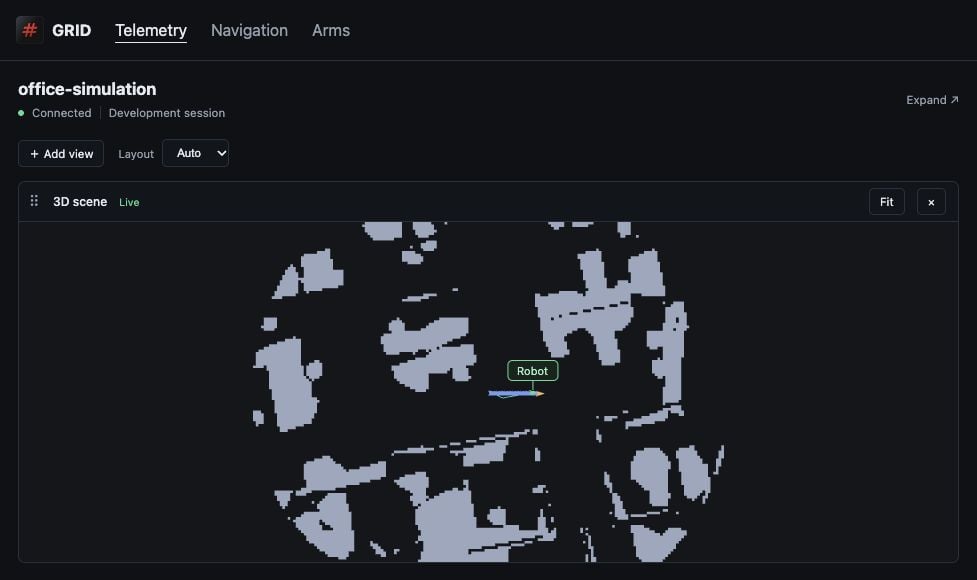
GRID CLI Telemetry showing the office simulation's nearby occupancy map, robot position, planned route, and driven path. Data is supplied through a local simulation adapter.
telemetry(since=...),
log_chunk(...), and how to request the next batch of data.
Reopen the viewer
Callnav.view() from the connected notebook. To print the URL only, use
nav.view(open_browser=False). You can also run this inside the GRID terminal:
nav view YOUR_ROBOT --no-open prints the URL instead.
This command opens Mission watch. Select Telemetry for notebook outputs and diagnostics.
Reopen the page after changing account or cluster. A separate CLI process does not share the held session.
The viewer observes the robot. Close it without ending the mission.
To stop motion, use the owning mission workflow.
nav.stop() stops navigation workers; nav.shutdown() releases Nav.
Both affect clients sharing that navigation instance.
Example recording
This GRX capture shows a camera image above the logged position and motion plots from an office simulation. Select a stream on the left to show or hide it. Use the timeline at the bottom to inspect samples from the recording.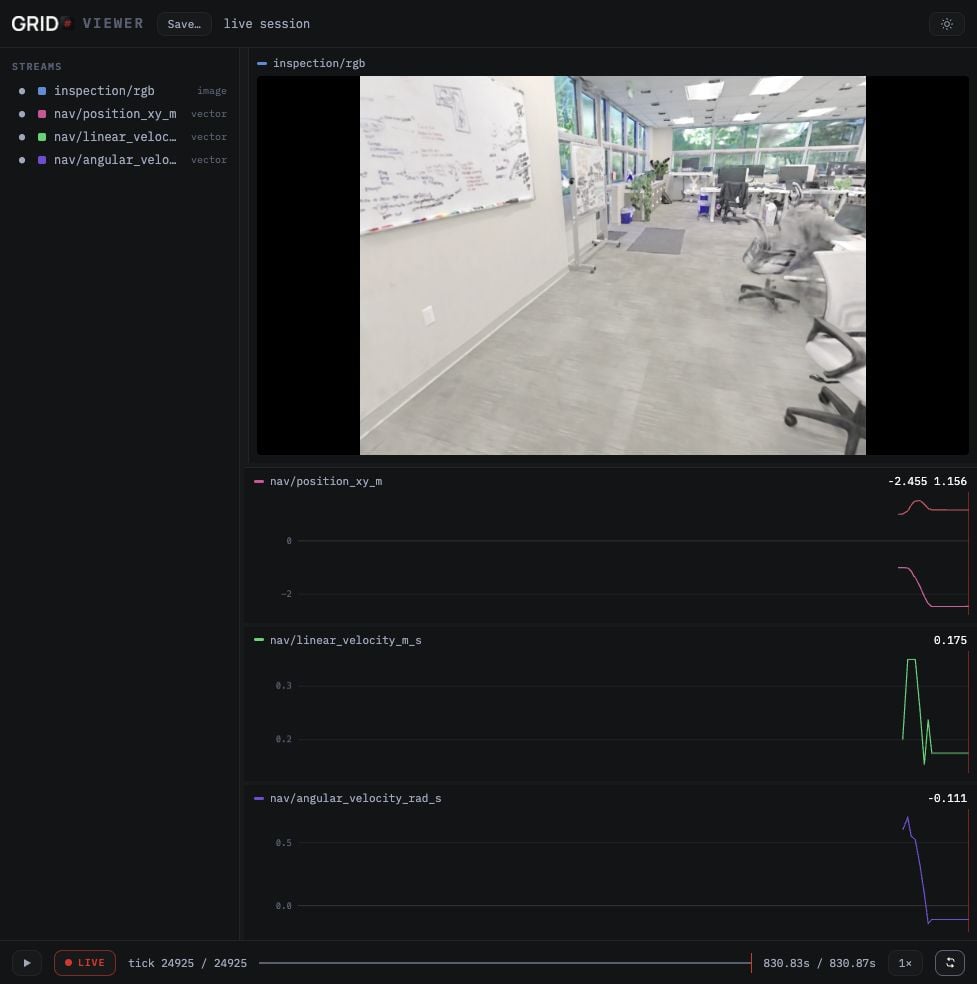
GRX recording from the office simulation: camera image, map position, and commanded linear and angular velocity. This capture uses the standalone GRX viewer.
Log a measurement
Log a camera image
Use the camera selected in your notebook. This example requires an RGB image.t_ns.
It does not establish the camera’s capture time or prove that a frame is fresh.
The notebook can read and log images while nav.run_mission(..., blocking=False) runs.
Logging is synchronous. Slow sensor or viewer requests can delay the notebook’s cancellation path.
Keep the mission’s cancellation and cleanup code.
Log images during a mission
This example combines camera images and the robot’s map position in one recording. Complete Chapter 1 through localization, sorobot,
nav, MAP_ID, and the reviewed MISSION are ready. Use this cell instead of
Chapter 1’s mission execution cell.
First run Log a measurement above to create telemetry and import NumPy.
Select an RGB CAMERA with the camera selector,
then run Log a camera image once to check its output while stationary.
blocking=False lets the notebook read sensors while navigation runs on the robot.
In Telemetry, use Add view to show inspection/rgb and nav/position_xy_m.
The position stream plots map X and Y in metres; it does not measure speed.
Use the available robot navigation views for other motion data.
The half-second pause limits how often the notebook requests samples. It does not
set the robot’s control rate. The image and pose are read separately and are not
synchronized. Check nav.result() for the mission outcome; a finished loop alone
does not mean success. Interrupting the cell or encountering an error requests cancellation.
Save and finish
telemetry.stop() detaches the notebook client. It does not stop the robot or close the CLI-owned viewer.
Run the notebook’s Nav and robot cleanup separately. The viewer stops when the CLI exits.
For standalone playback, run:
If the page is empty
- Check
GRID_TELEMETRY_URLin the selected kernel. Do not reuse a URL from an earlier CLI process. - Confirm that the first log call succeeded and that the stream is selected.
- Keep the CLI running. Reconnect the notebook client after a viewer replacement.
- Check the timeline’s retained range. A paused time can expire as old data is removed.
- Check that later samples use the first sample’s shape and data type.