> ## Documentation Index
> Fetch the complete documentation index at: https://docs.generalrobotics.dev/llms.txt
> Use this file to discover all available pages before exploring further.
# Thermal Camera
This tutorial demonstrates how to use the AirGen simulation environment to control a drone, capture infrared (thermal) images, and highlight fire objects for thermal analysis. You will learn how to:
* Initialize and control a simulated drone
* Capture and display infrared images
* Enhance fire object visibility in thermal imagery
Notebook for this example can be found: [Here](https://grid.generalrobotics.dev/shared/d475a069-ef6d-425e-9b4d-1fbb4241c099)
## Initialize the Drone
First, import the necessary module and create an AirGen drone instance.
```python theme={null}
from grid.robot.aerial.airgen_drone import AirGenDrone
# Create a drone object
airgen_drone_0 = AirGenDrone()
```
## Take Off and Position the Drone
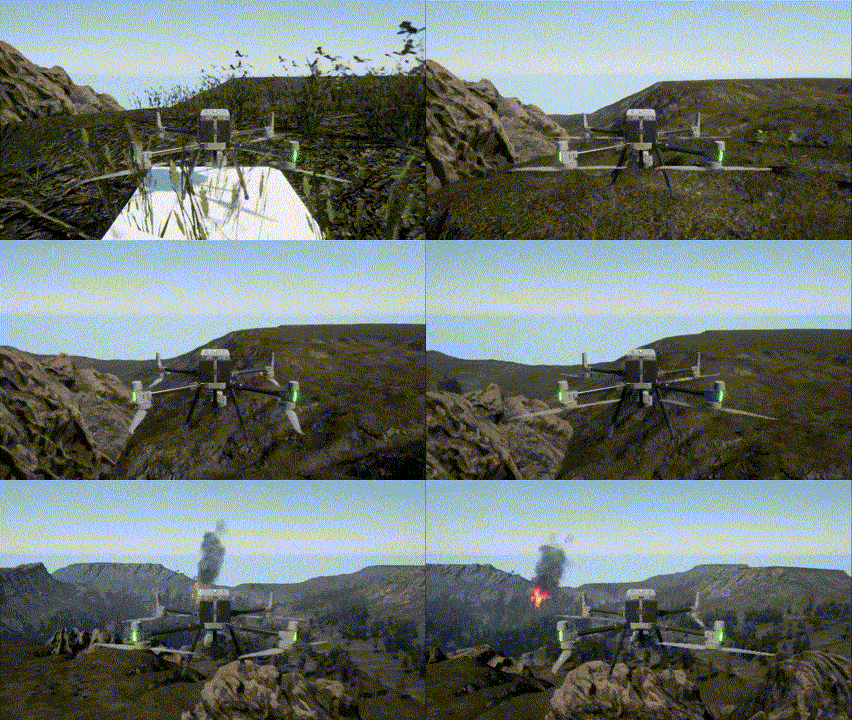
Command the drone to take off, ascend to a height of 25 units, and rotate to face west (yaw -90 degrees).
```python theme={null}
# Take off and move to a specific altitude and orientation
airgen_drone_0.client.takeoffAsync().join()
airgen_drone_0.client.moveToZAsync(-25, 2).join()
airgen_drone_0.client.rotateToYawAsync(-90).join()
```
 ## Capture and Display an Infrared Image
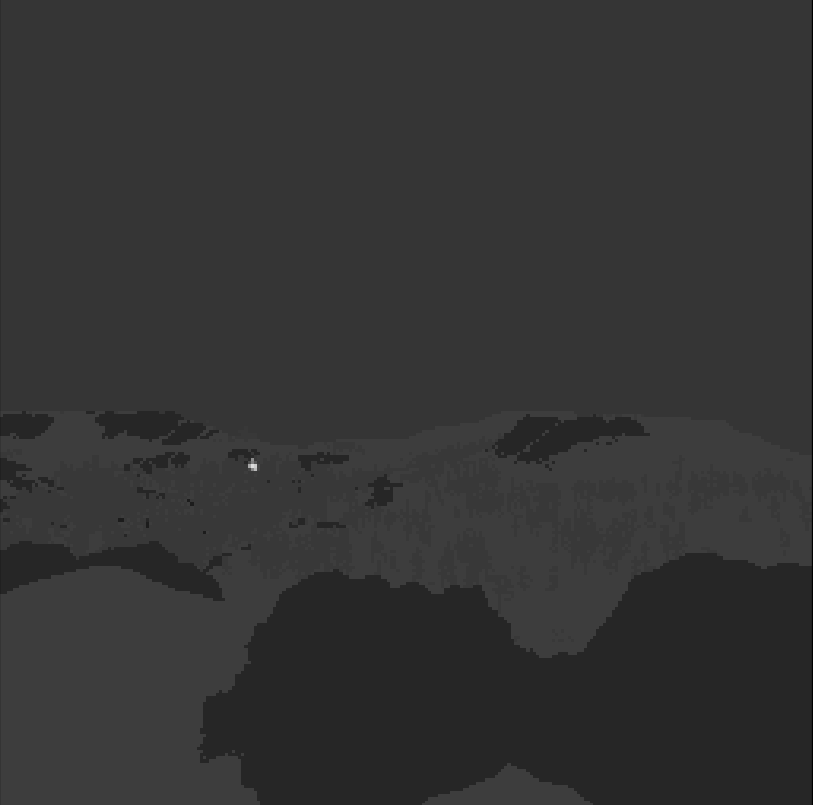
Capture an infrared (thermal) image from the drone's front-center camera and display it using the `rerun` visualization library.
```python theme={null}
# Import required libraries
import airgen
import rerun as rr
# Capture an infrared image
ir_image, camera_pose = airgen_drone_0.client.getImages("front_center",
[airgen.ImageType.Infrared])[^0]
# Display the infrared image
rr.log("infrared", rr.Image(ir_image))
```
## Capture and Display an Infrared Image
Capture an infrared (thermal) image from the drone's front-center camera and display it using the `rerun` visualization library.
```python theme={null}
# Import required libraries
import airgen
import rerun as rr
# Capture an infrared image
ir_image, camera_pose = airgen_drone_0.client.getImages("front_center",
[airgen.ImageType.Infrared])[^0]
# Display the infrared image
rr.log("infrared", rr.Image(ir_image))
```
 ## Highlight Fire Objects in the Scene
To make fire objects stand out in the infrared image, set their segmentation ID to the highest intensity value.
```python theme={null}
# List all objects in the scene whose names start with "Fire"
fire_obj_refs = airgen_drone_0.client.simListSceneObjects("Fire.*")
print(fire_obj_refs)
# Select the first fire object
fire_obj = fire_obj_refs[^0]
# Set the fire object's segmentation ID to 255 (max intensity)
airgen_drone_0.client.simSetSegmentationObjectID(fire_obj, 255, True)
```
## Recapture and Display the Enhanced Infrared Image
Capture another infrared image after enhancing the fire object's intensity, and display the result.
```python theme={null}
# Capture the updated infrared image
ir_image, camera_pose = airgen_drone_0.client.getImages("front_center",
[airgen.ImageType.Infrared])[^0]
# Display the enhanced infrared image
rr.log("infrared_new", rr.Image(ir_image))
```
## Highlight Fire Objects in the Scene
To make fire objects stand out in the infrared image, set their segmentation ID to the highest intensity value.
```python theme={null}
# List all objects in the scene whose names start with "Fire"
fire_obj_refs = airgen_drone_0.client.simListSceneObjects("Fire.*")
print(fire_obj_refs)
# Select the first fire object
fire_obj = fire_obj_refs[^0]
# Set the fire object's segmentation ID to 255 (max intensity)
airgen_drone_0.client.simSetSegmentationObjectID(fire_obj, 255, True)
```
## Recapture and Display the Enhanced Infrared Image
Capture another infrared image after enhancing the fire object's intensity, and display the result.
```python theme={null}
# Capture the updated infrared image
ir_image, camera_pose = airgen_drone_0.client.getImages("front_center",
[airgen.ImageType.Infrared])[^0]
# Display the enhanced infrared image
rr.log("infrared_new", rr.Image(ir_image))
```