> ## Documentation Index
> Fetch the complete documentation index at: https://docs.generalrobotics.dev/llms.txt
> Use this file to discover all available pages before exploring further.
# Hello GRID Enterprise
> Get started with your first GRID simulation session
Welcome to the **Hello GRID** tutorial! This guide walks you through setting up and running your first GRID session using the GRID Enterprise platform.
By default, all commands target the `local` machine. For remote machines, use the `@` syntax.
## What You'll Learn
In this tutorial, you will:
* Initialize the GRID Enterprise platform
* Start a simulation session using AirGen
* Access the simulation, notebook, and visualization interfaces
* Capture and visualize sensor data
* Run an AI model on captured images
* Clean up your environment
***
## Setup and Initialization
Before starting, ensure GRID Enterprise is installed on your machine. If not, follow the [installation guide](/grid/grid-enterprise/how-to-use/installation).
You should also have your `license.json` and `resource_config.json` files configured in `~/.grid/`.
Open your terminal and start the GRID CLI:
```bash theme={null}
grid
```
```text theme={null}
.d8888b. 8888888b. 8888888 8888888b.
d88P Y88b 888 Y88b 888 888 "Y88b
888 888 888 888 888 888 888
888 888 d88P 888 888 888
888 88888 8888888P" 888 888 888
888 888 888 T88b 888 888 888
Y88b d88P 888 T88b 888 888 .d88P
"Y8888P88 888 T88b 8888888 8888888P"
General Robot Intelligence Development Platform - Enterprise version
General Robotics Technology, Inc.
Type help for list of commands.
GRID #
```
Authenticate with the registry and start the containers:
```bash theme={null}
login @local
init airgen @local
```
```text theme={null}
GRID # login @local
Logging in to General Robotics – GRID registry...
Login successful!
GRID # init airgen @local
Initializing assets …
Assets initialized.
Starting airgen on local …
Checking container statuses...
grid_core: ✓
grid_server: ✓
grid_sim_airgen: ✓
Containers are active.
```
First-time initialization downloads container images and may take several minutes.
***
## Starting Your First Session
Launch a session with a sample configuration:
```bash theme={null}
session start hello_grid
```
```text theme={null}
GRID # session start hello_grid
Using sample config at /home/grid/.grid/sample_session_airgen.json
Starting session hello_grid on node local …
Status: Initializing session...
Status: Downloading content...
Status: Session has been started successfully
Session started successfully.
```
Since no config file was specified, GRID generates a sample configuration automatically.
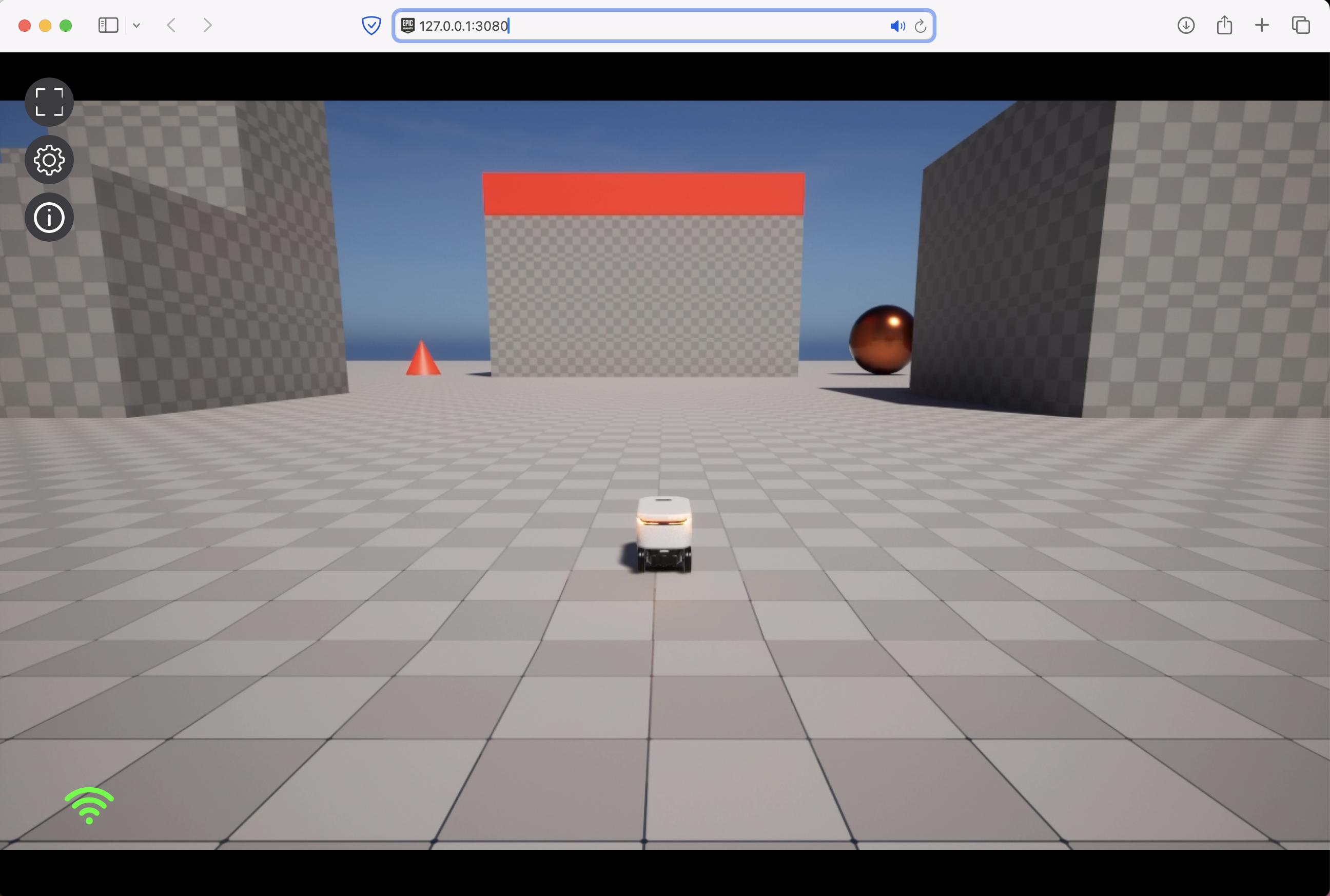
View the simulation in your browser:
```bash theme={null}
open sim @local
```
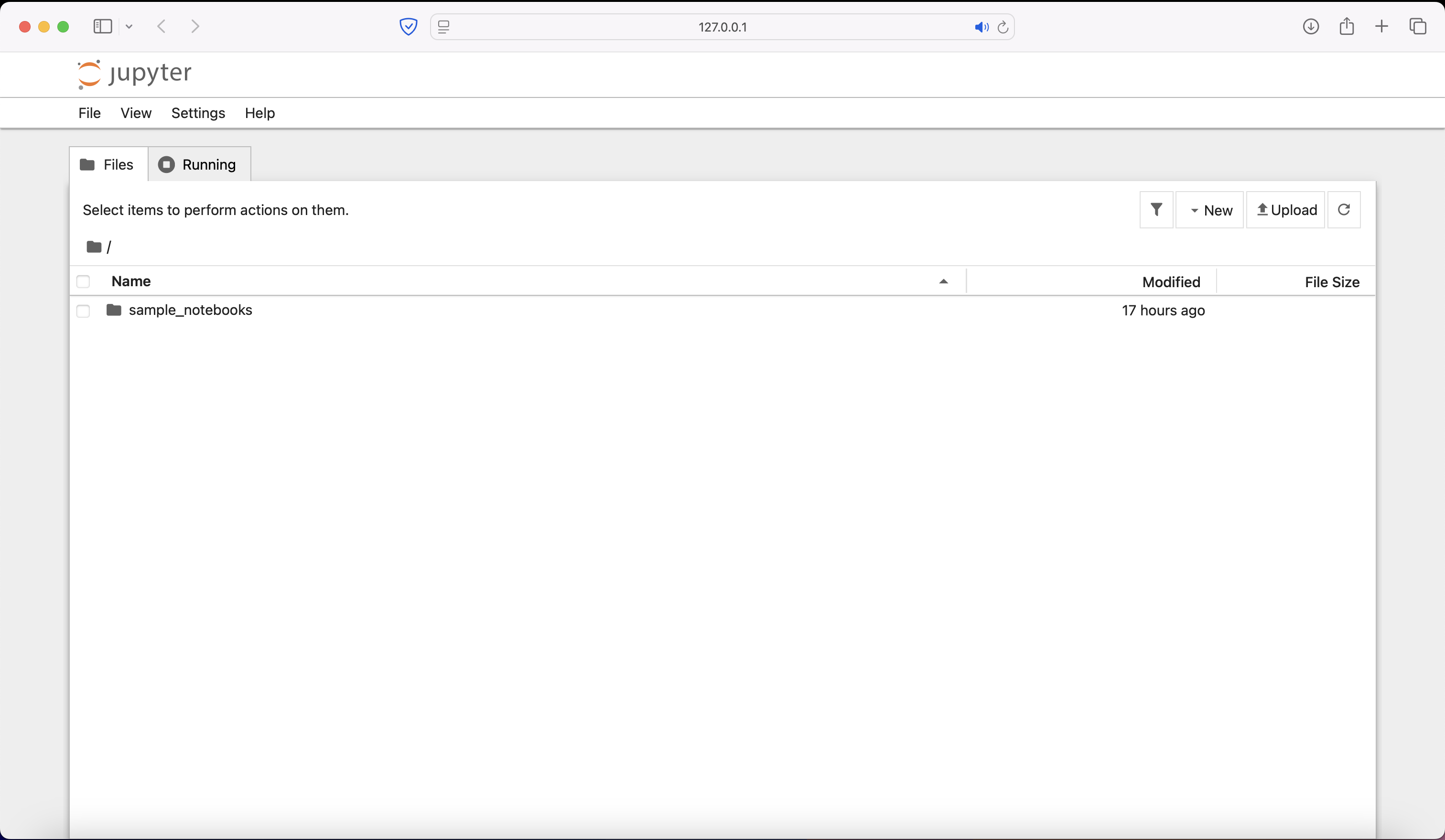
 Access Jupyter notebooks:
```bash theme={null}
open nb @local
```
Access Jupyter notebooks:
```bash theme={null}
open nb @local
```
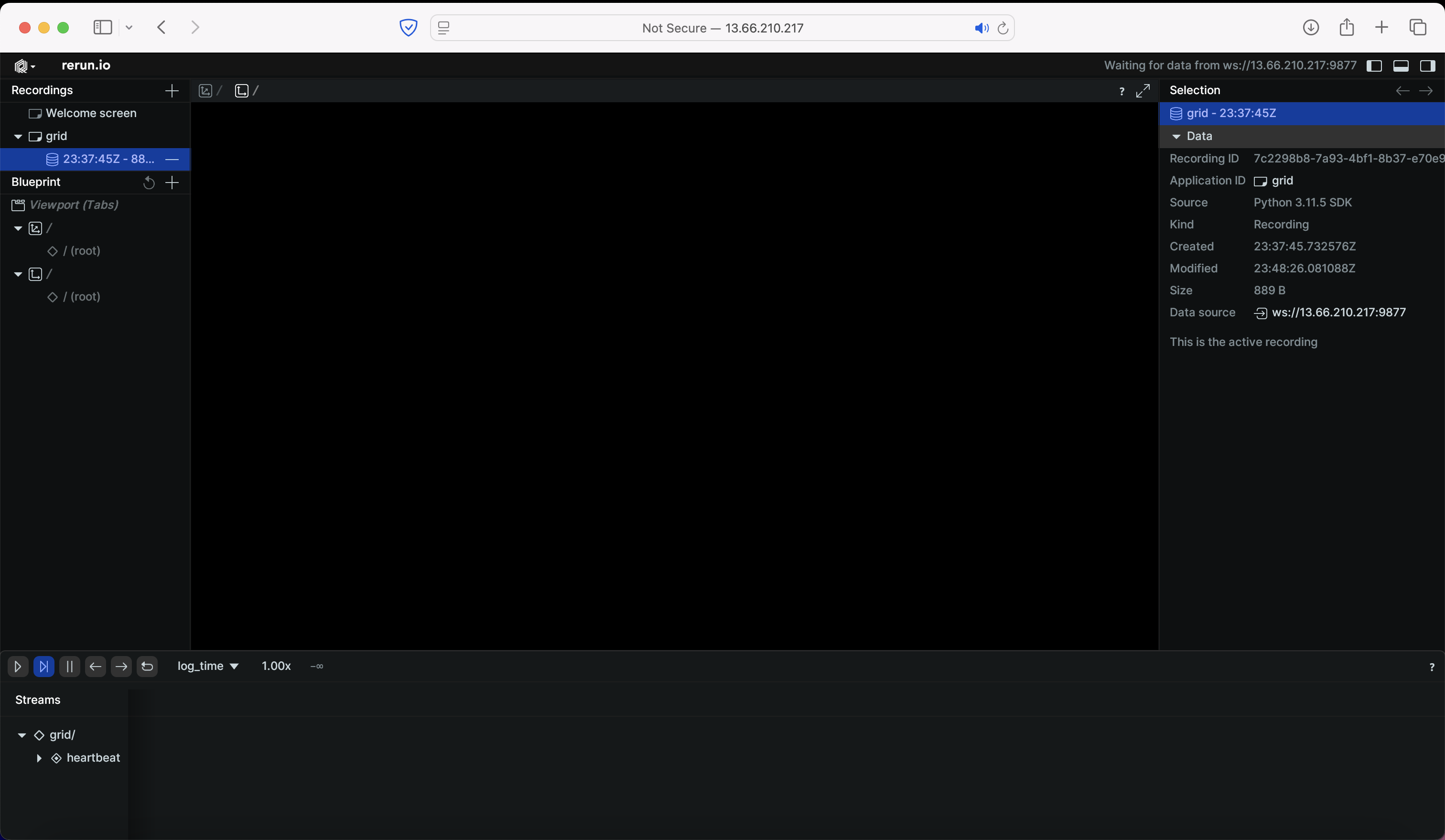
 Launch the Rerun visualization interface:
```bash theme={null}
open viz @local
```
Launch the Rerun visualization interface:
```bash theme={null}
open viz @local
```
 Verify your session is running:
```bash theme={null}
session list
```
```text theme={null}
+------------+-------+------------------------------+
| Session | Node | Last active |
+============+=======+==============================+
| hello_grid | local | 2024-09-10T23:42:51.674976+00|
+------------+-------+------------------------------+
```
***
## Data Capture and Visualization
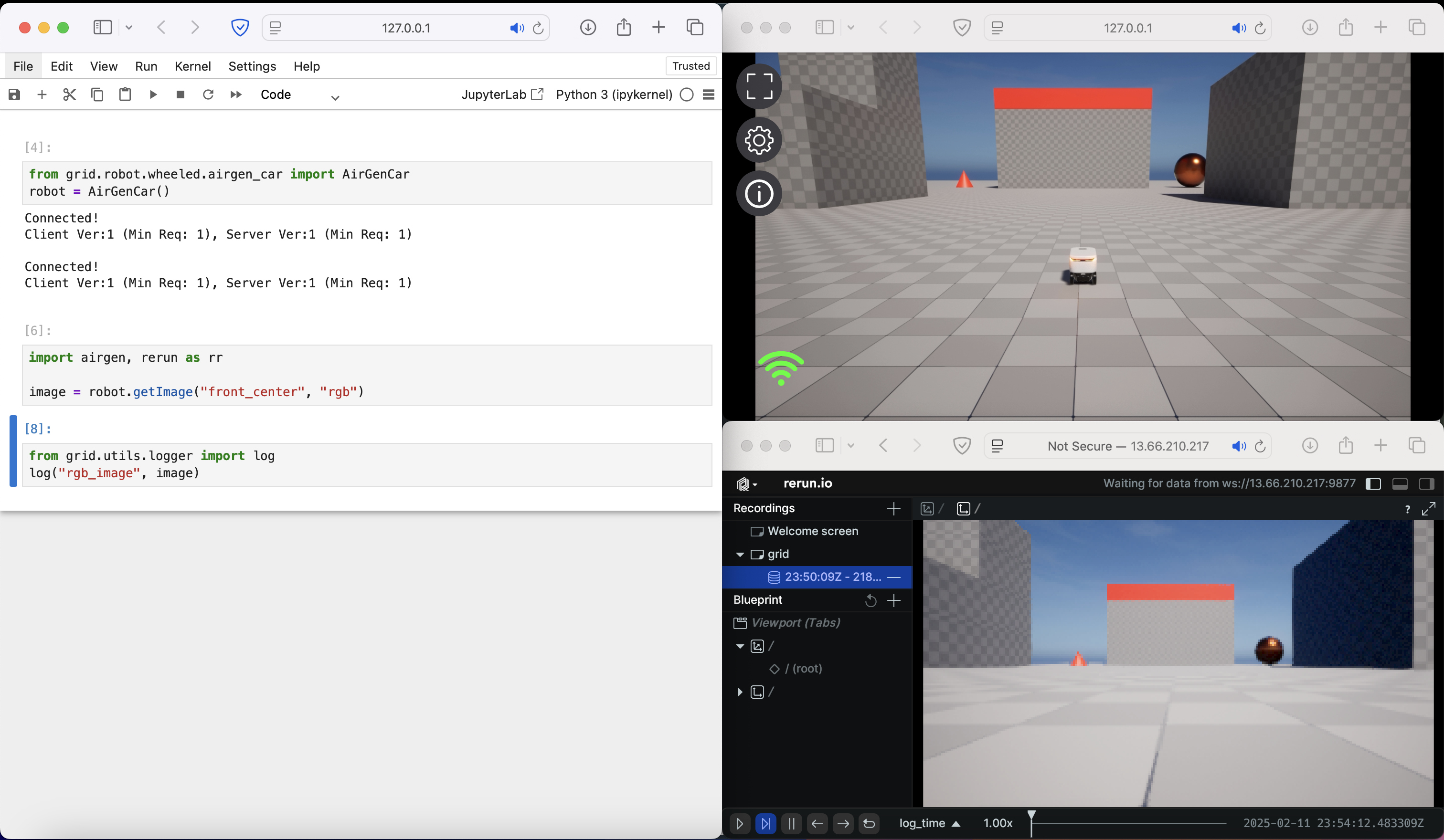
With your session running, create a new notebook from the Jupyter interface and try capturing sensor data.
### Capture an Image
```python theme={null}
from grid.robot.wheeled.airgen_car import AirGenCar
robot = AirGenCar()
import airgen
image = robot.getImage("front_center", "rgb")
# Visualize in Rerun
from grid.utils.logger import log
log("rgb_image", image)
```
Verify your session is running:
```bash theme={null}
session list
```
```text theme={null}
+------------+-------+------------------------------+
| Session | Node | Last active |
+============+=======+==============================+
| hello_grid | local | 2024-09-10T23:42:51.674976+00|
+------------+-------+------------------------------+
```
***
## Data Capture and Visualization
With your session running, create a new notebook from the Jupyter interface and try capturing sensor data.
### Capture an Image
```python theme={null}
from grid.robot.wheeled.airgen_car import AirGenCar
robot = AirGenCar()
import airgen
image = robot.getImage("front_center", "rgb")
# Visualize in Rerun
from grid.utils.logger import log
log("rgb_image", image)
```
 ### Run an AI Model
Use a pre-trained object detection model on your captured image:
```python theme={null}
from grid.model.perception.detection.owlv2 import OWLv2
det_model = OWLv2(use_local=True)
det_model.run(image.data, "ball")
```
### Run an AI Model
Use a pre-trained object detection model on your captured image:
```python theme={null}
from grid.model.perception.detection.owlv2 import OWLv2
det_model = OWLv2(use_local=True)
det_model.run(image.data, "ball")
```
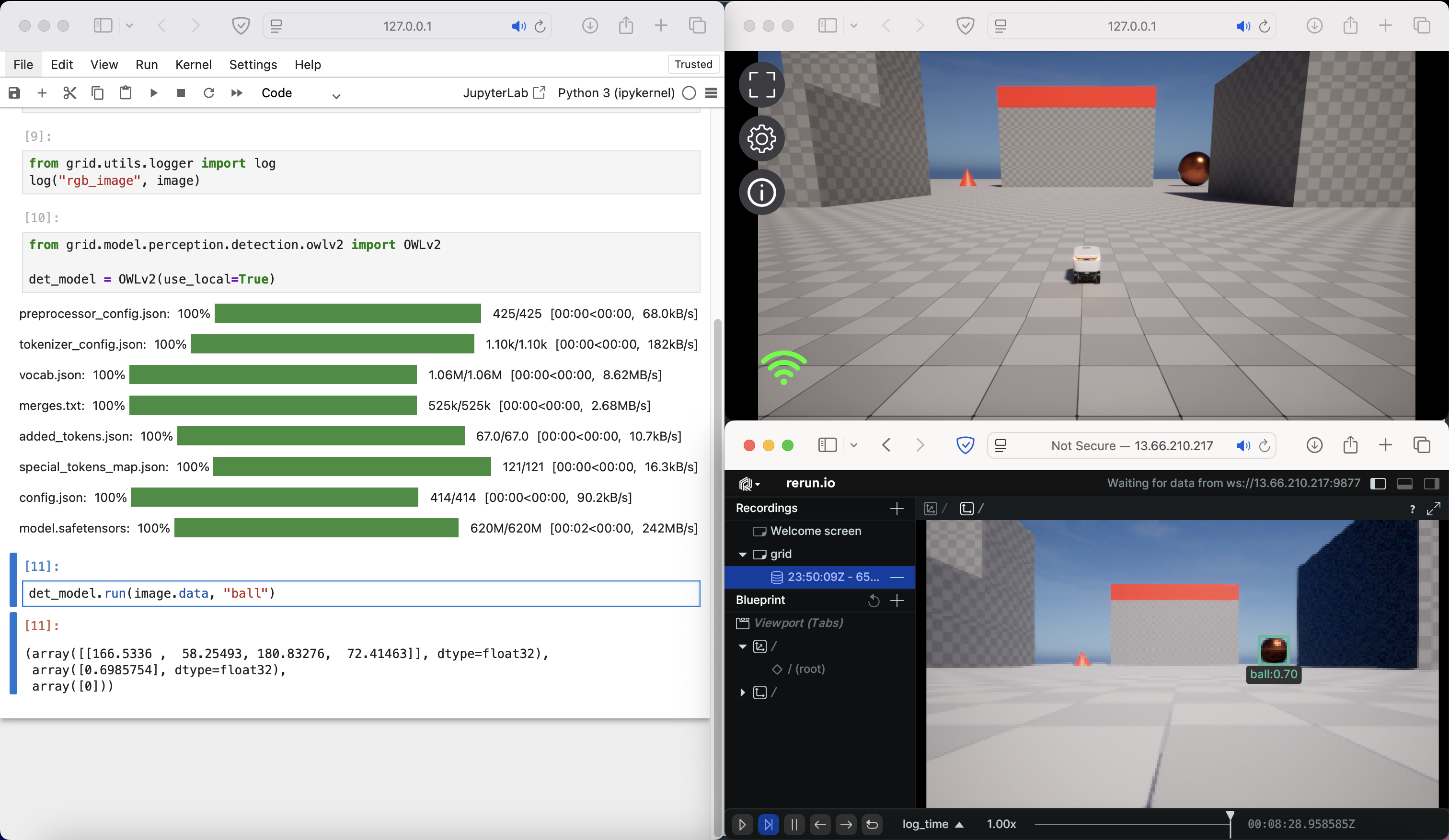 GRID includes dozens of pre-trained models for detection, segmentation, depth estimation, VLMs, and more. See the [AI Models](/models/overview) documentation.
***
## Cleanup
```bash theme={null}
session stop hello_grid
```
```text theme={null}
Stopping session hello_grid on node local …
Session stopped.
```
When finished for the day, shut down the containers:
```bash theme={null}
terminate @local
```
```text theme={null}
Checking container statuses...
grid_core: ✗
grid_server: ✗
grid_sim_airgen: ✗
Containers stopped successfully.
```
***
## Congratulations!
You've completed the **Hello GRID** tutorial! You successfully:
* Initialized GRID containers
* Started a simulation session
* Accessed simulation, notebook, and visualization interfaces
* Captured sensor data and ran an AI model
* Cleaned up your environment
***
## Next Steps
Learn all available commands including `update assets` and `update samples`.
Develop directly inside the GRID container with VS Code.
Explore AirGen's features for aerial and ground robots.
Discover all available AI models for perception and control.
GRID includes dozens of pre-trained models for detection, segmentation, depth estimation, VLMs, and more. See the [AI Models](/models/overview) documentation.
***
## Cleanup
```bash theme={null}
session stop hello_grid
```
```text theme={null}
Stopping session hello_grid on node local …
Session stopped.
```
When finished for the day, shut down the containers:
```bash theme={null}
terminate @local
```
```text theme={null}
Checking container statuses...
grid_core: ✗
grid_server: ✗
grid_sim_airgen: ✗
Containers stopped successfully.
```
***
## Congratulations!
You've completed the **Hello GRID** tutorial! You successfully:
* Initialized GRID containers
* Started a simulation session
* Accessed simulation, notebook, and visualization interfaces
* Captured sensor data and ran an AI model
* Cleaned up your environment
***
## Next Steps
Learn all available commands including `update assets` and `update samples`.
Develop directly inside the GRID container with VS Code.
Explore AirGen's features for aerial and ground robots.
Discover all available AI models for perception and control.