> ## Documentation Index
> Fetch the complete documentation index at: https://docs.generalrobotics.dev/llms.txt
> Use this file to discover all available pages before exploring further.
# Download Data
After generating the data from the simulation, follow these steps to download it from the GRID platform:
1. Navigate to the GRID platform's **Storage** tab, which is located next to the **Terminal** tab.
2. Press the **Download** button to directly save the data to your local machine.
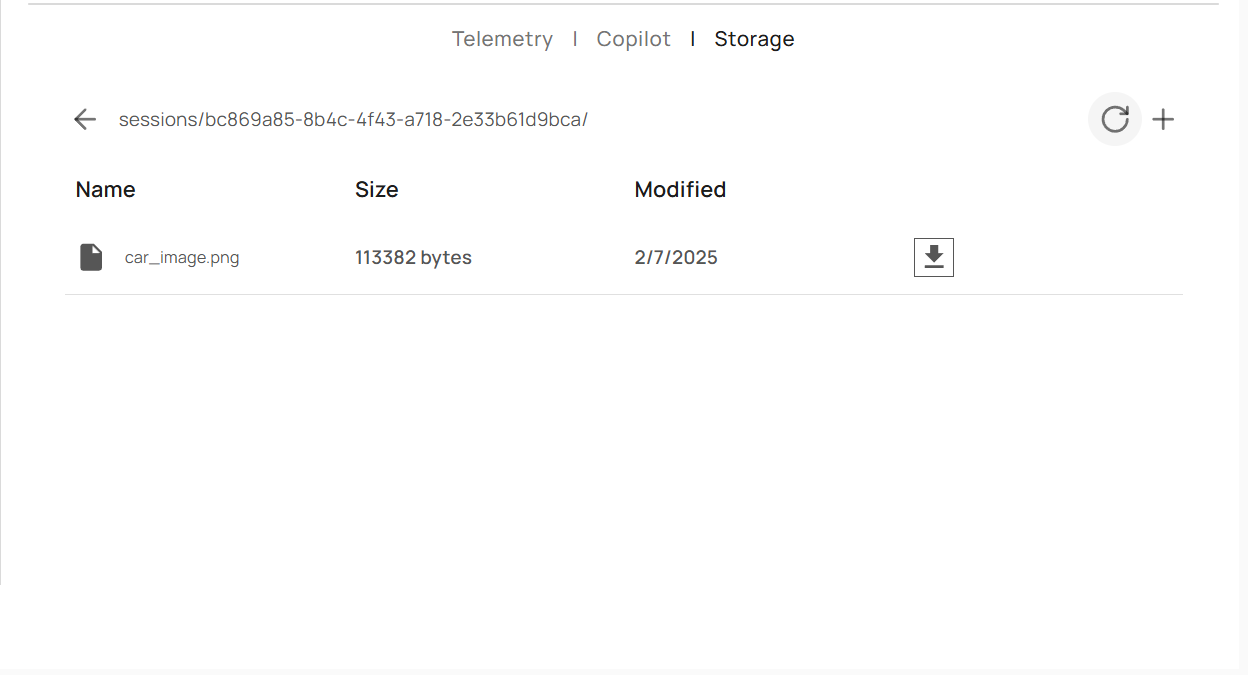 By following these steps, you can efficiently capture and store sensor and image data from your simulations onto your local system.
For extremely large files, there might not be a notification pop-up about the download in your browser. In such cases, check the download folder on your local machine to verify if the download has started.\
We are actively working on fixing this issue.
This section provides an overview of the advanced settings available within GRID Enterprise. These settings provide further customization and control over your development setup.
### Docker Commands
While GRID Enterprise's CLI seamlessly handles Docker authentication and basic orchestration, advanced users may seek greater control and customization by interacting directly with Docker. The following Docker commands provide a deeper level of control over containers and their configurations.
#### 1. Monitor Container Logs
Monitoring container logs is crucial for debugging and ensuring that your applications are running smoothly.
**Command:**
```bash theme={null}
docker logs -f
```
**Description:**
* `-f`: Follows the log output in real-time, allowing you to monitor logs as they are generated.
**Example:**
```bash theme={null}
docker logs -f
```
#### 2. Access Container Shell
Accessing the container's shell allows for in-depth troubleshooting and direct interaction with the container's environment.
**Command:**
```bash theme={null}
docker exec -it /bin/bash
```
**Description:**
* `-i`: Interactive mode.
* `-t`: Allocates a pseudo-TTY.
* `/bin/bash`: Specifies the shell to use inside the container.
**Example:**
```bash theme={null}
docker exec -it /bin/bash
```
#### 3. Inspect Container Details
Inspecting a container provides detailed information about its configuration, state, and resource usage, aiding in troubleshooting and optimization.
**Command:**
```bash theme={null}
docker inspect
```
**Description:**
* Retrieves comprehensive details about the specified container in JSON format.
**Example:**
```bash theme={null}
docker inspect
```
#### 4. Monitor Container Resource Usage
Keeping track of a container's resource consumption ensures that it operates efficiently without overusing system resources.
**Command:**
```bash theme={null}
docker stats
```
**Description:**
* Provides real-time statistics on CPU, memory, network, and disk usage for the specified container.
**Example:**
```bash theme={null}
docker stats
```
#### 5. Update Docker Containers
Updating containers ensures that you have the latest features, security patches, and performance improvements. This process involves pulling the latest image, stopping and removing the existing container, and deploying a new one with the updated image.
**Steps to Update a Container:**
* **Pull the Latest Image:**
```bash theme={null}
docker pull sfgrid.azurecr.io/grid/core/:latest
```
**Example:**
```bash theme={null}
docker pull sfgrid.azurecr.io/grid/core/:latest
```
* **Stop the Running Container:**
```bash theme={null}
docker stop
```
**Example:**
```bash theme={null}
docker stop
```
* **Remove the Existing Container:**
```bash theme={null}
docker rm
```
**Example:**
```bash theme={null}
docker rm
```
* **Run the Updated Container:**
```bash theme={null}
docker run -d --name sfgrid.azurecr.io/grid/core/main:latest
```
**Example:**
```bash theme={null}
docker run -d --name sfgrid.azurecr.io/grid/core/main:latest
```
### Data Storage
Images generated during sessions are saved inside the Docker container in the `/app/images` directory. To save an image using Python, use the following code snippet:
```python theme={null}
import os
from PIL import Image
# Define the directory inside the container where images are saved
IMAGE_SAVE_DIR = "/app/images"
# Ensure the directory exists
os.makedirs(IMAGE_SAVE_DIR, exist_ok=True)
# Save the image
image.save(os.path.join(IMAGE_SAVE_DIR, "generated_image.png"))
```
To transfer the saved images from the Docker container to a location on your host machine, use the `docker cp` command as shown below:
```bash theme={null}
docker cp :/app/images /path/on/host
```
**Example:**
If your container is named `grid_core` and you want to copy images to `/home/user/images`, run:
```bash theme={null}
docker cp grid_core:/app/images /home/user/images
```
This command copies all images from the container's `/app/images` directory to your specified host directory, allowing you to access and manage them outside the Docker environment.
By following these steps, you can efficiently capture and store sensor and image data from your simulations onto your local system.
For extremely large files, there might not be a notification pop-up about the download in your browser. In such cases, check the download folder on your local machine to verify if the download has started.\
We are actively working on fixing this issue.
This section provides an overview of the advanced settings available within GRID Enterprise. These settings provide further customization and control over your development setup.
### Docker Commands
While GRID Enterprise's CLI seamlessly handles Docker authentication and basic orchestration, advanced users may seek greater control and customization by interacting directly with Docker. The following Docker commands provide a deeper level of control over containers and their configurations.
#### 1. Monitor Container Logs
Monitoring container logs is crucial for debugging and ensuring that your applications are running smoothly.
**Command:**
```bash theme={null}
docker logs -f
```
**Description:**
* `-f`: Follows the log output in real-time, allowing you to monitor logs as they are generated.
**Example:**
```bash theme={null}
docker logs -f
```
#### 2. Access Container Shell
Accessing the container's shell allows for in-depth troubleshooting and direct interaction with the container's environment.
**Command:**
```bash theme={null}
docker exec -it /bin/bash
```
**Description:**
* `-i`: Interactive mode.
* `-t`: Allocates a pseudo-TTY.
* `/bin/bash`: Specifies the shell to use inside the container.
**Example:**
```bash theme={null}
docker exec -it /bin/bash
```
#### 3. Inspect Container Details
Inspecting a container provides detailed information about its configuration, state, and resource usage, aiding in troubleshooting and optimization.
**Command:**
```bash theme={null}
docker inspect
```
**Description:**
* Retrieves comprehensive details about the specified container in JSON format.
**Example:**
```bash theme={null}
docker inspect
```
#### 4. Monitor Container Resource Usage
Keeping track of a container's resource consumption ensures that it operates efficiently without overusing system resources.
**Command:**
```bash theme={null}
docker stats
```
**Description:**
* Provides real-time statistics on CPU, memory, network, and disk usage for the specified container.
**Example:**
```bash theme={null}
docker stats
```
#### 5. Update Docker Containers
Updating containers ensures that you have the latest features, security patches, and performance improvements. This process involves pulling the latest image, stopping and removing the existing container, and deploying a new one with the updated image.
**Steps to Update a Container:**
* **Pull the Latest Image:**
```bash theme={null}
docker pull sfgrid.azurecr.io/grid/core/:latest
```
**Example:**
```bash theme={null}
docker pull sfgrid.azurecr.io/grid/core/:latest
```
* **Stop the Running Container:**
```bash theme={null}
docker stop
```
**Example:**
```bash theme={null}
docker stop
```
* **Remove the Existing Container:**
```bash theme={null}
docker rm
```
**Example:**
```bash theme={null}
docker rm
```
* **Run the Updated Container:**
```bash theme={null}
docker run -d --name sfgrid.azurecr.io/grid/core/main:latest
```
**Example:**
```bash theme={null}
docker run -d --name sfgrid.azurecr.io/grid/core/main:latest
```
### Data Storage
Images generated during sessions are saved inside the Docker container in the `/app/images` directory. To save an image using Python, use the following code snippet:
```python theme={null}
import os
from PIL import Image
# Define the directory inside the container where images are saved
IMAGE_SAVE_DIR = "/app/images"
# Ensure the directory exists
os.makedirs(IMAGE_SAVE_DIR, exist_ok=True)
# Save the image
image.save(os.path.join(IMAGE_SAVE_DIR, "generated_image.png"))
```
To transfer the saved images from the Docker container to a location on your host machine, use the `docker cp` command as shown below:
```bash theme={null}
docker cp :/app/images /path/on/host
```
**Example:**
If your container is named `grid_core` and you want to copy images to `/home/user/images`, run:
```bash theme={null}
docker cp grid_core:/app/images /home/user/images
```
This command copies all images from the container's `/app/images` directory to your specified host directory, allowing you to access and manage them outside the Docker environment.